2.5 Inch SATA SSD – Notebook Computer High-Speed Solid State Drive, SATA III


2.5 Inch SATA SSD – Notebook Computer High-Speed Solid State Drive, SATA III
2.5 Inch SATA SSD – Notebook Solid State Drive, SATA III
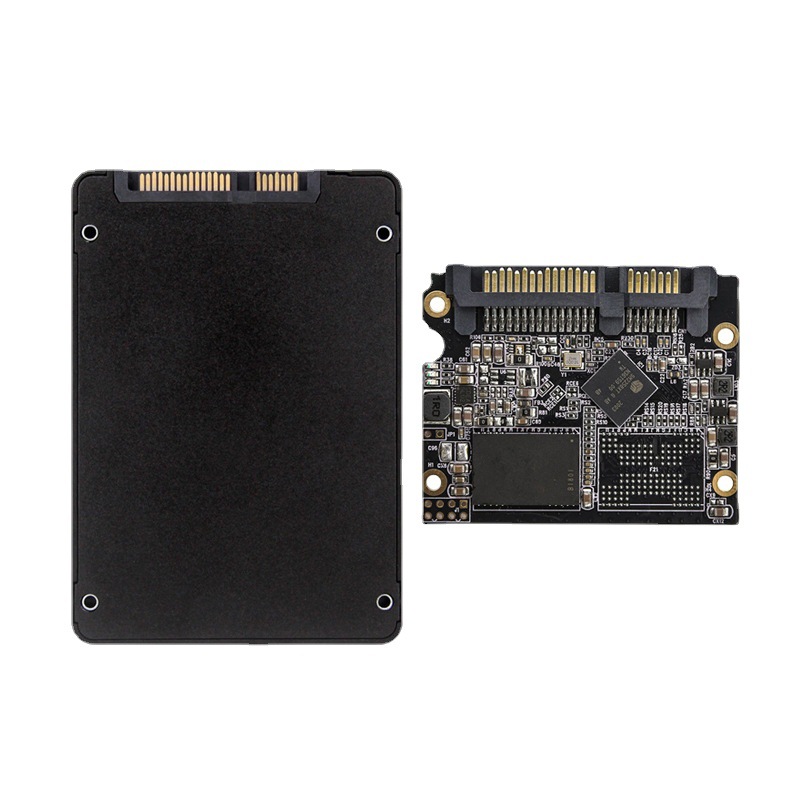
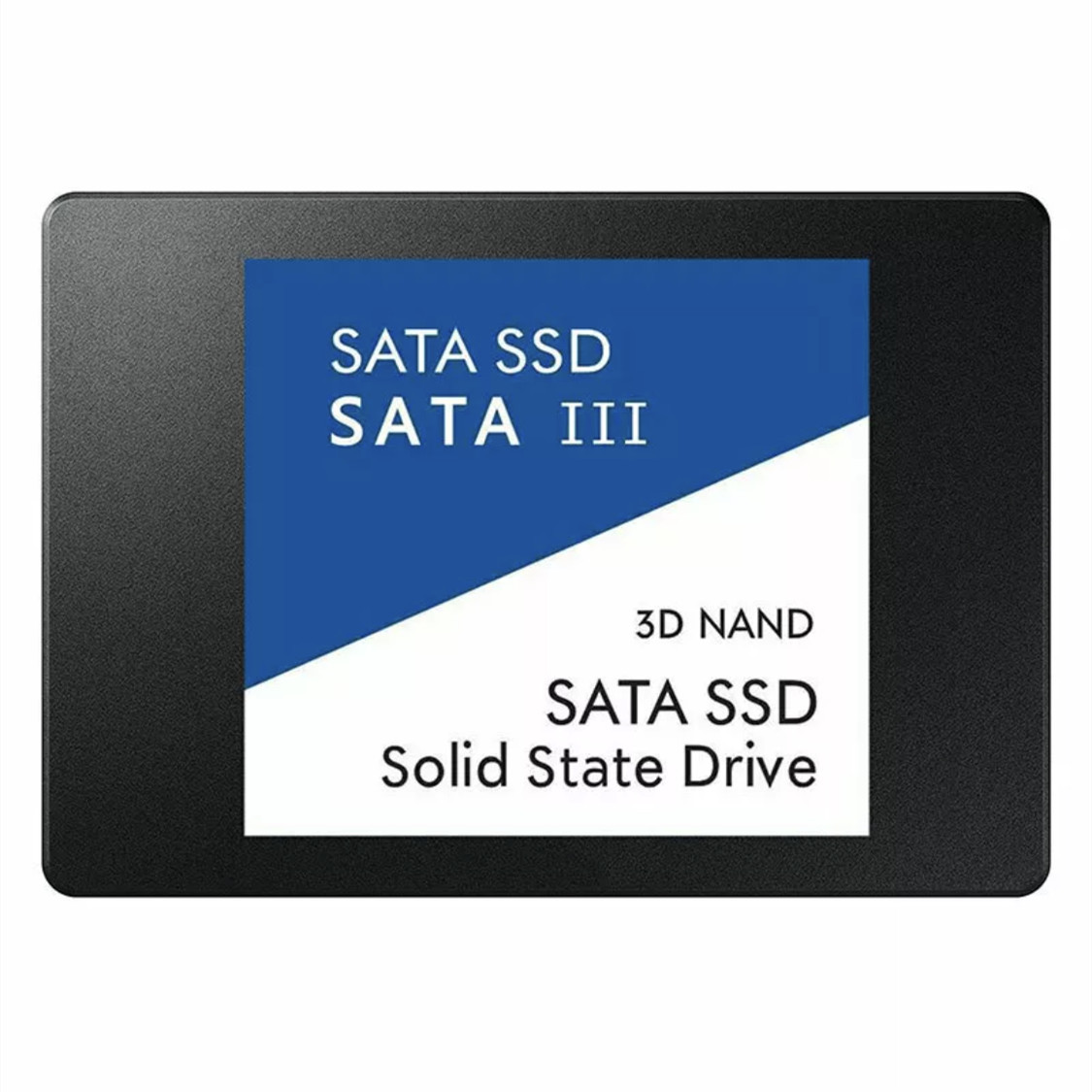
This 2.5 inch SATA SSD is an internal solid state drive in the standard notebook size, with a SATA III connector and a slim blue case. It replaces the hard disk in a laptop that has a 2.5-inch bay, or goes into a desktop as a boot drive or extra storage. The supplier lists it in four capacities. Easy Life Markets sells each one as a single bare drive.
Swapping a mechanical hard disk for a solid-state drive is still the upgrade that changes an older computer the most. Start-up drops from minutes to seconds, programs open promptly, and because there are no moving parts the drive is silent and copes better with the knocks a laptop gets.
What Is in the Box
- 1 × solid state drive
No SATA cable, screws, mounting bracket or cloning software is listed, so have those ready if your computer needs them.
Specifications
- Form factor: 2.5 inch
- Interface: SATA III, as printed on the drive label
- Flash type: 3D NAND, as printed on the drive label
- Listed speed: 520 MB/s in the supplier's data, 560 MB/s on one of its pictures
- Capacities listed: 64GB, 512GB, 1TB, 4TB
- Listed size: 10 × 70 × 7 mm (see the note below)
- Case colour: Blue
- Brand: None. The label reads "SATA SSD" with no maker's name
Notes on the Supplier's Figures
We sell this drive on the supplier's data and have not bench-tested it ourselves, so here is what we can and cannot stand behind.
Speed. The two figures the supplier gives do not agree with each other. Both sit close to the ceiling of the SATA III interface, which carries about 600 MB/s at most, so treat them as best-case sequential numbers. Real speed depends on the computer's SATA port, how full the drive is and the kind of files being moved. An older laptop with a SATA II port will run any drive at roughly half that.
Size. A standard 2.5-inch drive is about 100 mm long and 70 mm wide, so the 10 mm in the supplier's listing looks like a typing slip for 100 mm. The 7 mm thickness is the slim height that fits most notebook bays.
Capacity. The sizes above are the supplier's. With any unbranded drive, and most of all with the largest size, confirm the capacity yourself before you trust it with files. The steps are in the next section.
Check the Drive When It Arrives
- Connect the drive and look at the capacity your operating system reports. Expect a little less than the label, because computers count storage in a different unit from the one on the box.
- Run a full write-and-verify test with a drive testing utility. This fills the drive with test data and reads all of it back. It takes a while on a large drive and it is the only test that proves the real capacity.
- Do this before you copy anything you care about onto the drive.
- If the drive reports less than you ordered or fails the test, stop using it and contact us with a screenshot of the result.
Will It Fit Your Computer?
- Laptops: You need a 2.5-inch SATA bay. Most notebooks that shipped with a hard disk have one. Many newer thin laptops only have an M.2 slot and cannot take this drive. For those, see our M.2 2280 SSD.
- Desktops: You need a free SATA data port on the motherboard, a SATA power lead from the power supply, and a SATA data cable. Cases without a 2.5-inch mount need a 3.5-inch adapter bracket.
- Optical drive bays: Some laptops can take a second drive in place of the DVD drive using a caddy, which is not included.
Not sure which you have? Send us the laptop or motherboard model and we will help you check.
Fitting It
- Back up your files first.
- Decide whether to clone the old drive or install the operating system fresh. Cloning needs a USB-to-SATA adapter or a second bay, and the data on the old drive must fit on the new one.
- Switch off, unplug the charger and, where possible, disconnect the battery.
- Move the caddy or rails from the old drive to the new one and slide it into the connector without forcing it.
- A new blank drive does not appear in the file manager until it has been initialised and formatted in the operating system's disk tool.
Looking After an SSD
- Do not defragment it. That is for hard disks and only adds wear to flash memory.
- Leave some free space. A drive that is almost full slows down.
- Keep the SATA controller in AHCI mode so the operating system can use TRIM.
- Keep a backup. An SSD usually gives less warning before failure than a hard disk does.
Who It Suits
Owners of older laptops and desktops that still run from a hard disk, people building a budget PC, and anyone who needs a second internal drive for programs or media.
Common Questions
Is this a well-known brand of drive? No. It is an unbranded drive and we do not present it as any named maker's product.
Can I use it as an external drive? Yes, in a 2.5-inch USB enclosure, which is sold separately.
Is it waterproof? No. One of the supplier's pictures shows a splash of water for effect. Keep the drive dry.
Does it work in a games console? The supplier lists notebook computers only.
Buy the 2.5 Inch SATA SSD at Easy Life Markets
Choose the capacity above. The current price and availability are shown on this page. Please read our return and refund policy before buying.
Related Products
Browse our computers and laptops and electronics collections.
Product Photos