DDR3 Laptop RAM 2GB 4GB 8GB – 1333MHz 1600MHz SODIMM Memory, 1.5V or 1.35V


DDR3 Laptop RAM 2GB 4GB 8GB – 1333MHz 1600MHz SODIMM Memory, 1.5V or 1.35V
DDR3 Laptop RAM 2GB, 4GB and 8GB – 1333MHz and 1600MHz Notebook Memory
This DDR3 laptop RAM is a notebook memory module in the short SODIMM shape, offered in 2GB, 4GB and 8GB sizes at 1333MHz or 1600MHz. The 4GB and 8GB 1600MHz modules come in both standard 1.5V and low-voltage 1.35V versions, so there is a match for most notebooks from the DDR3 years. Easy Life Markets sells each option as a single memory stick.
Adding memory is the cheapest way to make an older laptop usable again. A machine with 2GB or 4GB spends much of its time shuffling data to the disk, which shows up as long pauses when you switch between browser tabs or programs. More DDR3 memory stops that. It only works, though, if the module matches what the laptop accepts, so the checks below matter more than the price.
What Is in the Box
- 1 × memory stick, boxed
Options
- 2GB, 1333MHz
- 2GB, 1600MHz
- 4GB, 1333MHz
- 4GB, 1600MHz
- 4GB, 1600MHz, 1.35V low voltage
- 8GB, 1600MHz, 1.5V standard voltage
- 8GB, 1600MHz, 1.35V low voltage
Options that are not marked low voltage are standard DDR3 modules, which run at 1.5V.
Specifications
- Memory type: DDR3
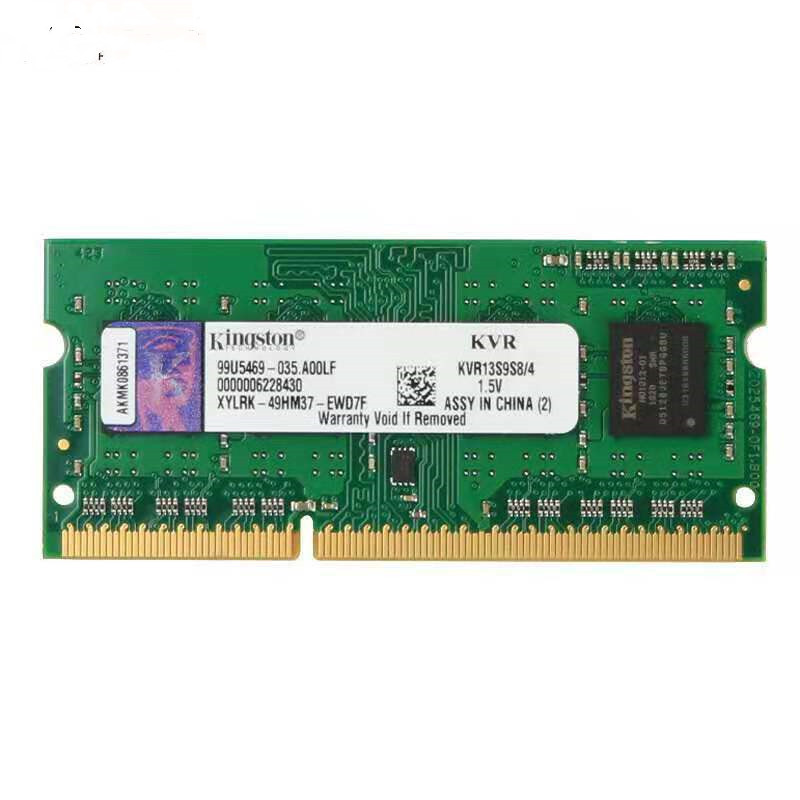
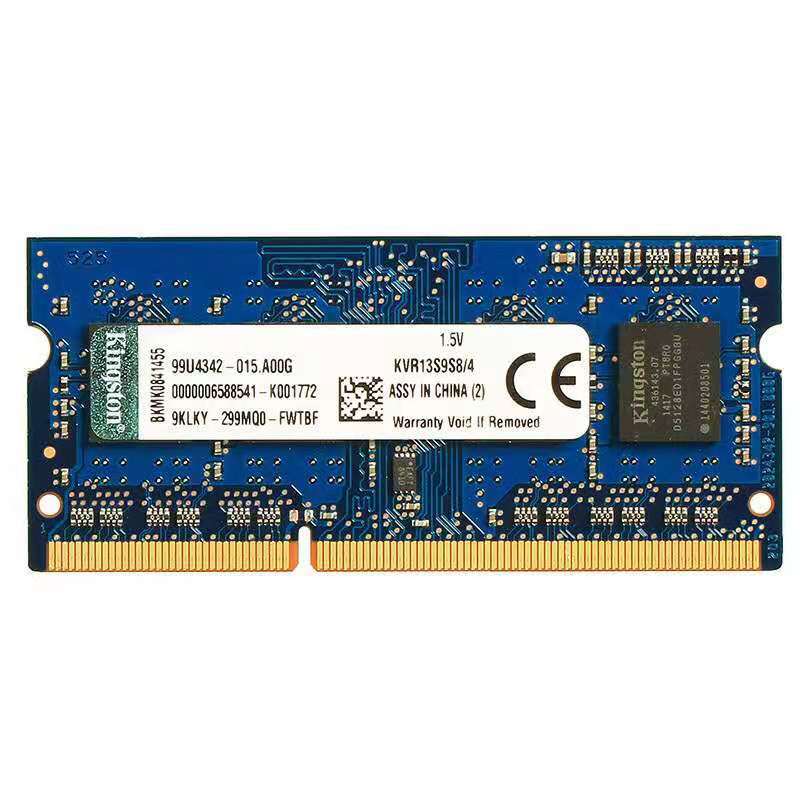
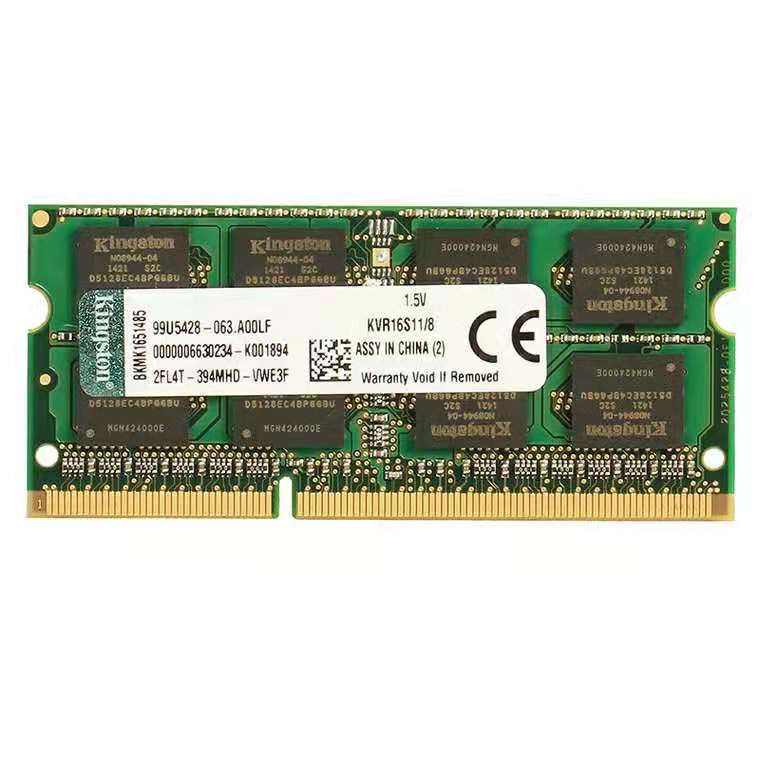
- Module shape: Laptop SODIMM, as shown in the supplier's photos
- Speeds: 1333MHz (also written PC3-10600) and 1600MHz (PC3-12800)
- Voltage: 1.5V standard, or 1.35V low voltage on the options marked
- Chip layout: 8 chips or 16 chips, depending on the module
- Sold as: Single module
- Weight: 0.02 kg
The Labels in the Photos
The modules in the supplier's photos carry labels marked Kingston, with part codes such as KVR16S11/8 and KVR13S9S8/4. We are reporting what the photos show. We have not verified the maker independently, so we list this memory without a brand claim of our own.
Will It Work in Your Laptop? Four Checks
- DDR generation. The laptop must use DDR3. DDR2, DDR4 and DDR5 slots have the notch in a different place and the module will not go in. Do not force it.
- Laptop or desktop. These are short notebook modules. They do not fit the long slots on a standard desktop motherboard. Some all-in-one and mini PCs use notebook memory; check the manual.
- Voltage. This is the one people miss. Older DDR3 notebooks run memory at 1.5V. Many later ones, built around low-power processors, accept only 1.35V memory, often labelled DDR3L or PC3L, and will not start with a 1.5V module. Look at the label on the memory already in the machine: "PC3L" means buy the 1.35V option. If it says "PC3" with no L, the 1.5V option matches.
- Maximum capacity. Every laptop has a limit per slot and in total. Some older machines stop at 4GB per slot. Check the manual or the maker's support page before ordering an 8GB module.
If you are unsure, send us the laptop model, or a photo of the label on the memory fitted now, and we will help you pick.
1333MHz or 1600MHz?
Match what is already fitted if you are adding a second module. A faster module will normally run at the speed of the slower one, so mixing is workable but gains nothing. If you are replacing all the memory, choose the speed the laptop's manual lists. Buying faster than the machine supports does not make it faster.
How Much to Fit
- 2GB: Only as a like-for-like replacement for a failed module in a very old machine.
- 4GB: A sensible minimum for light browsing and office work.
- 8GB: The comfortable choice for many browser tabs, video calls and office programs together, where the laptop supports it.
A 32-bit operating system uses only about 3 to 4GB regardless of what is installed. You need a 64-bit system to benefit from more.
Fitting It
- Shut the laptop down fully. Unplug the charger and remove or disconnect the battery.
- Touch bare metal to discharge static. Hold the module by its edges and keep fingers off the gold contacts.
- Open the memory cover on the underside. On some models the whole base comes off.
- Line the notch up with the key in the slot and push the module in at an angle of about thirty degrees until the contacts are almost hidden.
- Press the top edge down until the side clips click into place.
- Refit the cover and battery, start the laptop, and check that the system reports the new total.
If the laptop beeps or shows a black screen, switch off and reseat the module. A module that is not pushed fully home is the usual cause.
Who It Suits
Owners of DDR3-era notebooks who want to extend the life of a working machine, repairers replacing a failed module, and anyone bringing an old laptop back into service for a student or as a spare.
Common Questions
Is this DDR4? No. Every option is DDR3 and will not fit a DDR4 slot.
Is it sold in pairs? No. Each order is one module. Order two for a matched pair.
Can I mix it with the memory already in my laptop? Usually, if type and voltage match. Mixed modules occasionally disagree; if the laptop is unstable, test each module alone.
Will a 1.35V module work in a 1.5V laptop? Low-voltage DDR3 is designed to be able to run at 1.5V as well, so it normally does. The reverse is the combination that fails.
Buy DDR3 Laptop RAM at Easy Life Markets
Choose the size, speed and voltage above. The current price and availability are shown on this page. Please read our return and refund policy before buying.
Related Products
Browse our computers and laptops and electronics collections.
Product Photos